Key takeaways
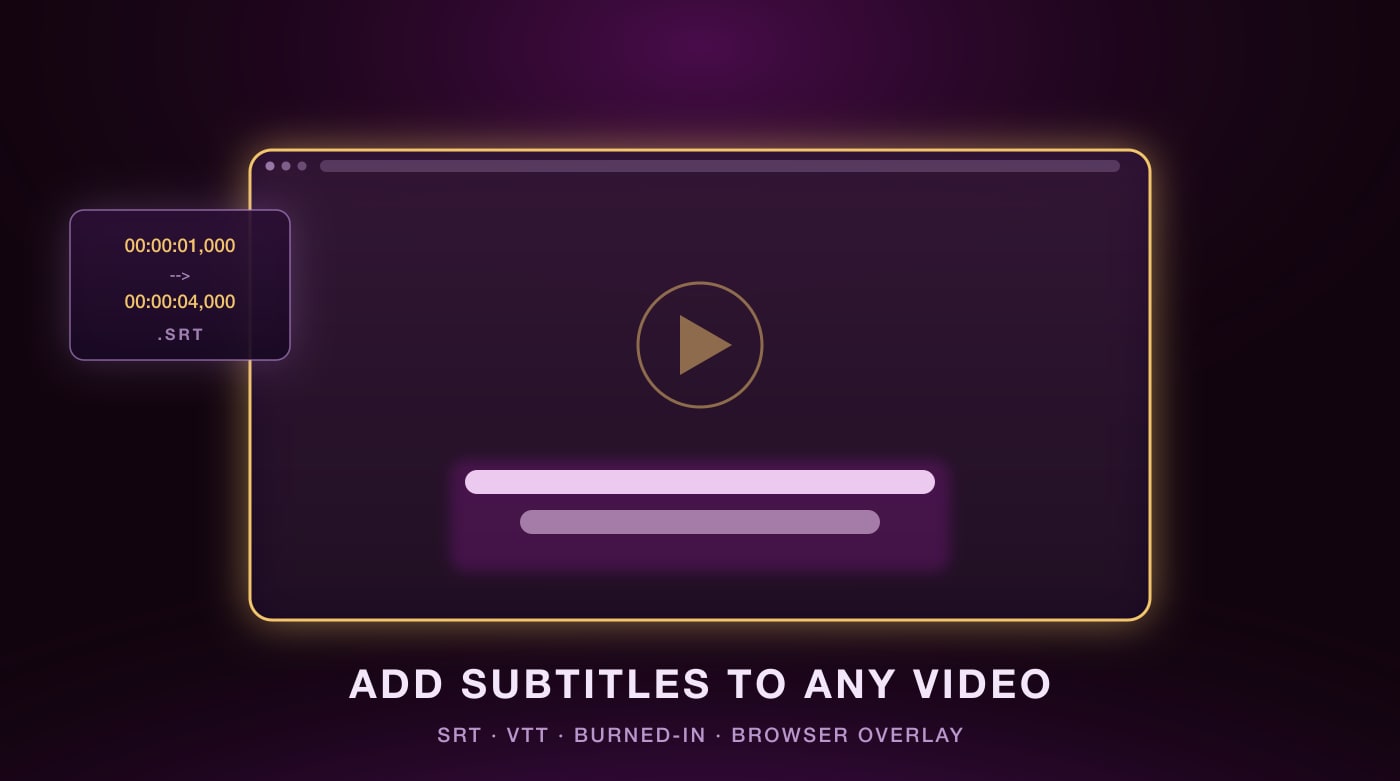
- Decide first whether you want soft subtitles (a separate file viewers can switch off) or burned-in subtitles (permanent, always visible).
- For a video you own, the fastest free route is auto-generated captions in YouTube Studio, then fixing the errors by hand.
- VLC plays an SRT file alongside any local video with no re-encoding and no upload.
- HandBrake burns subtitles permanently into the picture for platforms that strip subtitle tracks.
- For streaming video you do not own, a browser extension overlays subtitles on the player instead — and can show two languages at once.
Adding subtitles to a video sounds like one task, but it is really two very different ones. If the video file is yours, you are attaching or burning in a subtitle track. If you are watching something on Netflix or YouTube, you cannot touch the file at all — you overlay subtitles on top of the player as it plays.
This guide covers both. Start by picking the kind of subtitles you actually need, because that decision drives every step after it.
Soft vs Burned-In Subtitles
This is the one choice worth understanding before you open any tool. Everything else is mechanics.
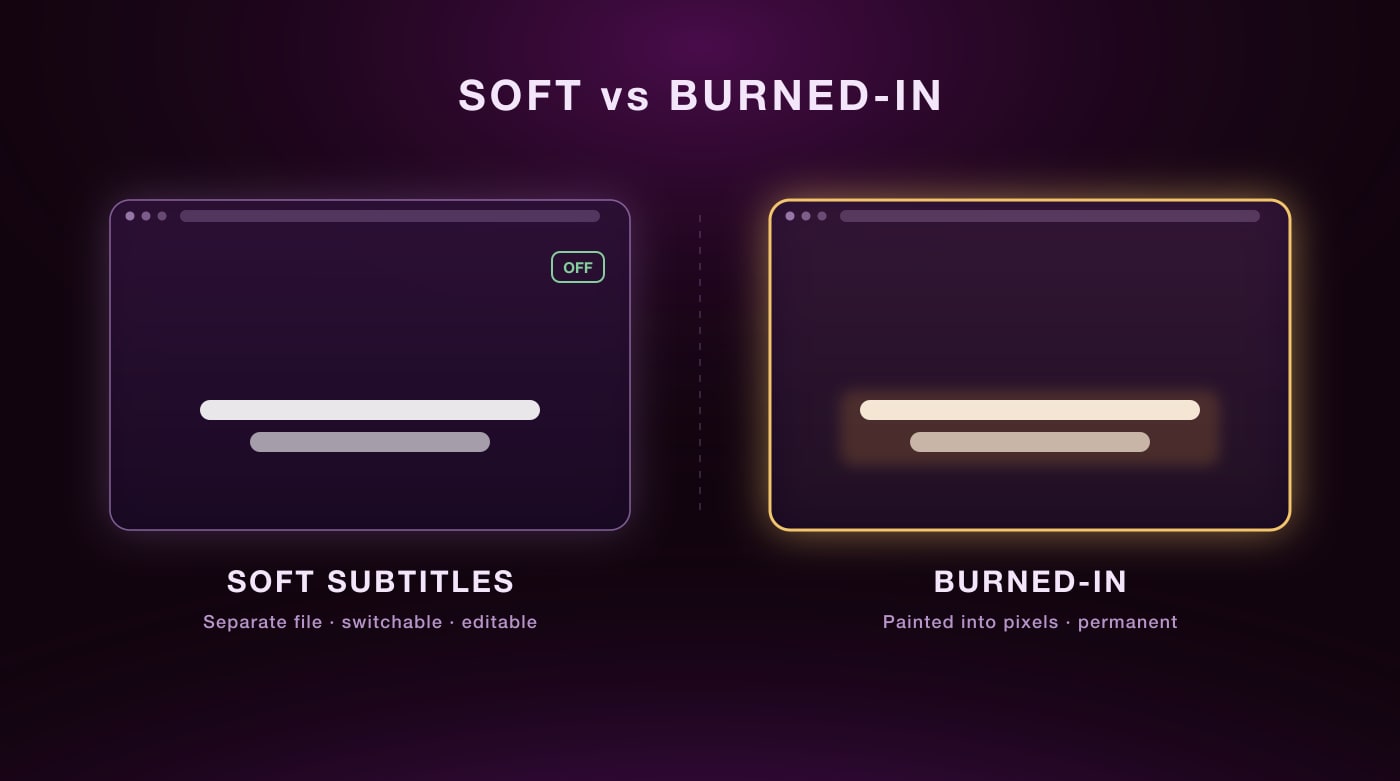
Soft subtitles
Stored as a separate file (.srt, .vtt) or as a track inside the container. The player draws them at playback time.
Burned-in subtitles
Painted directly into the video pixels during export. Also called hardcoded or open captions.
Which should you pick?
Default to soft subtitles. They are reversible, accessible, and good for search. Burn them in only when the destination demands it — Instagram, TikTok, and most autoplay-muted feeds either ignore subtitle tracks or hide them behind a tap.
Method 1: Auto-Generate Captions in YouTube Studio
The fastest free option for a video you own. YouTube transcribes the audio, and you correct the mistakes instead of typing from scratch. Even a rough machine transcript saves most of the work.
- 1
Upload the video
Set it to Unlisted if you only want the transcript and plan to publish elsewhere.
- 2
Open Subtitles
In YouTube Studio, go to Subtitles and wait for the automatic track to finish processing.
- 3
Edit the errors
Click Duplicate and Edit. Fix names, technical terms, and homophones, which is where auto-captions fail most.
- 4
Download the SRT
Export the corrected track as .srt so you can reuse it anywhere else.
Auto-captions are a first draft, not a deliverable
Machine transcription is strong on ordinary speech and weak on proper nouns, jargon, accents, overlapping speakers, and background noise. Always read it through before publishing — an uncorrected auto-caption track reads as careless and is unreliable for accessibility.
Method 2: Attach an SRT File in VLC
If the video sits on your own drive and you just want to watch it with subtitles, this takes about five seconds. Nothing is uploaded and nothing is re-encoded.
Drag the .srt file onto the VLC window while the video is playing. That is the whole process. For it to load automatically every time, put the subtitle file in the same folder as the video and give it the same filename:
my-video.mp4
my-video.srt          → loads automatically
my-video.es.srt       → Spanish track
my-video.en.srt       → English track
If the subtitles drift out of sync, press G to pull them earlier and H to push them later, in 50ms steps. A constant offset is easy to fix this way; drift that grows over time usually means the subtitle file was timed against a different frame rate.
Method 3: Burn Subtitles In with HandBrake
HandBrake is free, open source, and available on Windows, macOS, and Linux. Use it when the subtitles have to survive re-uploads and platform processing.
- 1
Open the source
Drag your video file into HandBrake and let it scan.
- 2
Add the track
Go to the Subtitles tab, choose Add External Subtitle Track, and select your .srt file.
- 3
Tick Burn In
This is the step people miss. Without it the track is only muxed in as a soft subtitle.
- 4
Encode
Pick a preset such as Fast 1080p30 and start the encode. The subtitles are now permanent.
Keep the original
Burning in is destructive and cannot be reversed — the text becomes part of the picture. Always export to a new file and keep your untouched master, or a single typo means re-editing from scratch.
Method 4: Add Subtitles in a Video Editor
If you are already editing the video, do the subtitles in the same place. Every major editor now has automatic transcription built in, and you get full control over typography and placement.
CapCut
Free, with solid auto-captions and social-ready animated styles. The usual choice for vertical video.
DaVinci Resolve
Free tier includes transcription and a proper subtitle track on the timeline. Best free option for long-form work.
Premiere Pro
Speech to Text generates a caption track you can export as SRT or burn in on export. Subscription only.
Descript
Edits video by editing the transcript, so captions come free as a by-product of the edit itself.
Method 5: Add Subtitles to Streaming Video You Do Not Own
None of the methods above apply to Netflix, YouTube, or Prime Video. You have no file to edit. What you can do is overlay subtitles on top of the player while it plays, using a browser extension.
This matters most for language learners. A browser overlay can show the original language and your native language at the same time, which no built-in player setting will do — every streaming service lets you pick exactly one subtitle language at a time.
Pros
- Shows two languages at once, which no native player supports
- Click any word for an instant translation without pausing
- Works across Netflix, YouTube, and Prime Video
- No files, no downloads, no re-encoding
Cons
- Chrome desktop only — mobile streaming apps cannot run extensions
- Requires an active subscription to the streaming service
- Only overlays on playback; it does not change the video file
Funlingo is a free Chrome extension that does this on Netflix, YouTube, and Prime Video. You pick two languages, they appear together under the video, and clicking a word gives you the translation, phonetics, and audio without stopping playback.
How to Write an SRT File by Hand
An SRT is plain text. If you only need a handful of lines, a text editor beats any tool. Each block is a number, a timestamp range, the text, and a blank line:
1
00:00:01,000 --> 00:00:04,000
Welcome back to the channel.

2
00:00:04,500 --> 00:00:08,200
Today we're looking at three ways
to make your workflow faster.
Four rules cover almost every broken SRT people run into:
- Timestamps use a comma before the milliseconds, not a period. A period is the VTT convention and will break an SRT parser.
- The arrow is exactly
-->, two hyphens and a right angle bracket, with a space on each side. - Every block ends with a blank line, including the last one.
- Save as UTF-8. Anything else mangles accented characters and non-Latin scripts.
Converting to WebVTT
For HTML5 video you need .vtt instead. The conversion is nearly free: add the line WEBVTT at the top of the file and replace the comma in every timestamp with a period. The block structure stays the same.
Making Subtitles Actually Readable
Broadcast subtitling has settled on a few conventions over decades. They are worth following, because they are tuned to how fast people read while also watching a picture.
If you are adding subtitles for language learning rather than accessibility, the calculus changes — you want the original text alongside a translation, not a condensed single track. Our guide on learning a language by watching covers that approach in depth.
Frequently Asked Questions
Upload to YouTube Studio and correct the auto-generated captions, or drag an SRT onto the video in VLC. Both are free. For streaming video you do not own, use a free Chrome extension such as Funlingo.
A plain text file of numbered subtitle blocks, each with a start and end timestamp and one or two lines of text. It is the most widely supported subtitle format and opens in any text editor.
Soft subtitles live in a separate file or track, so viewers can switch them off or change language. Burned-in subtitles are rendered into the pixels permanently and cannot be removed.
Not to the file itself, but a browser extension can overlay subtitles on the player as you watch. Funlingo does this on Netflix, YouTube, and Prime Video, and shows two languages at once.
A constant offset means the file starts at the wrong point — nudge it with G and H in VLC. Drift that grows over time means the subtitles were timed against a different frame rate, and the file needs re-timing rather than shifting.