Key takeaways
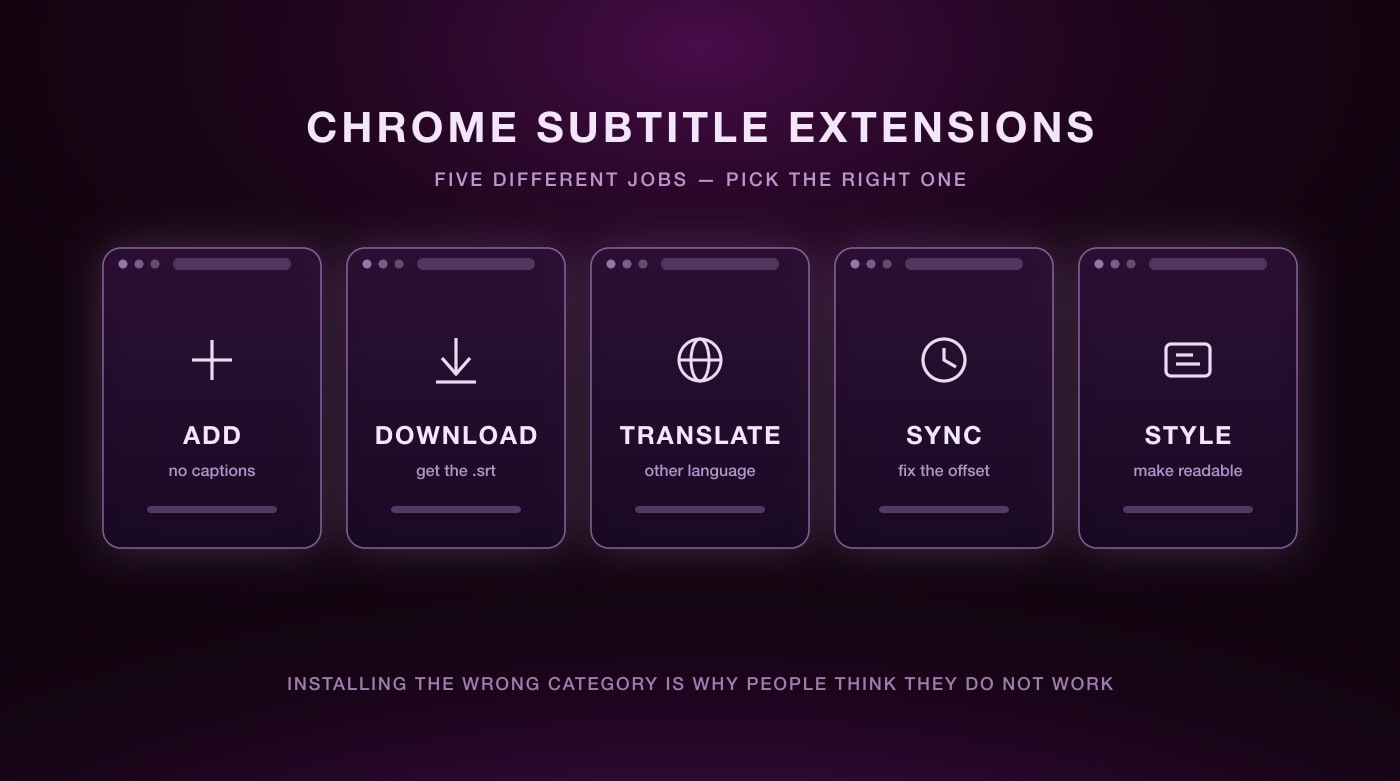
- "Subtitle extension" covers five unrelated jobs. Installing the wrong category is the usual reason people conclude these tools do not work.
- Substital is the pick when a video has no captions at all and you need to load your own SRT.
- Downloaders export the subtitle file itself. They show nothing on screen — a different job from overlays.
- Sync problems split in two: a constant offset is a one-slider fix, while growing drift means the file was timed for another frame rate.
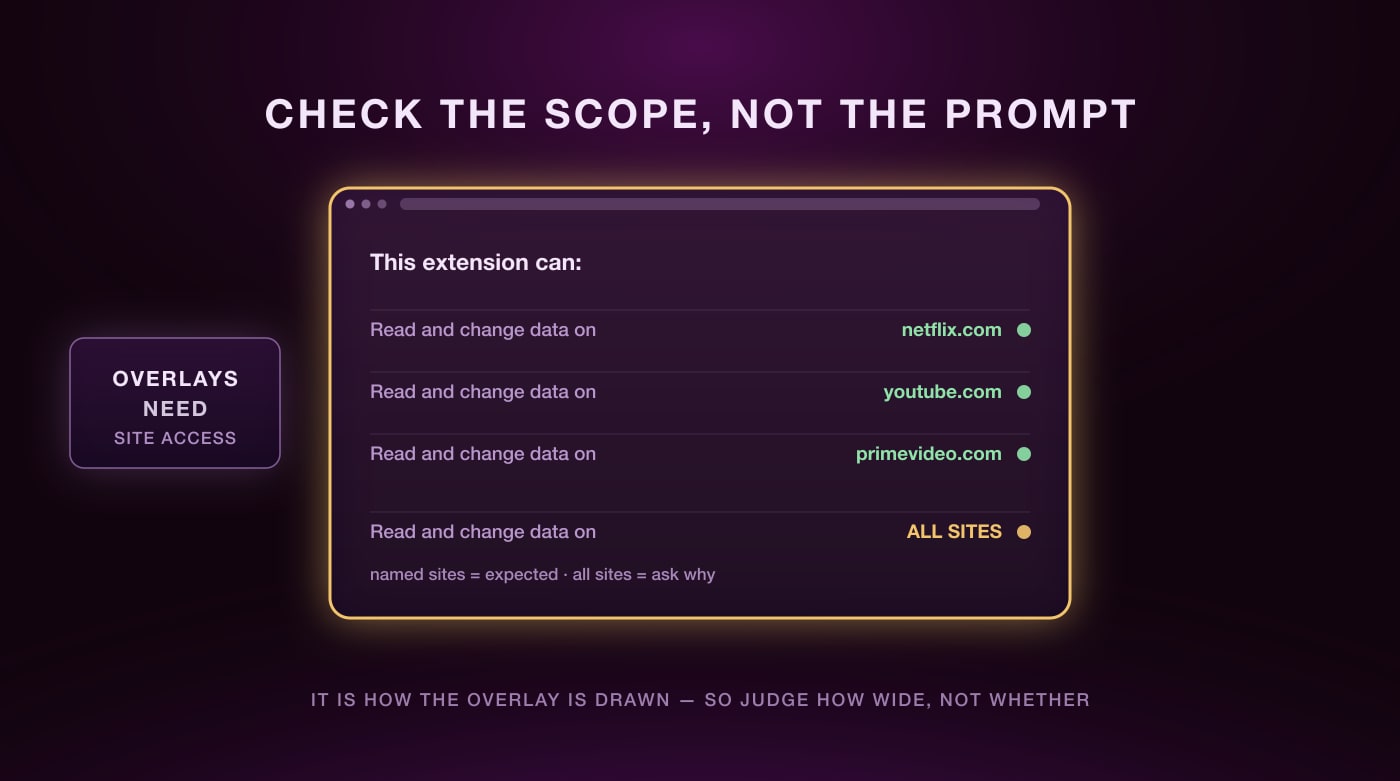
- Every overlay extension needs permission to read and change data on the sites it supports. That is how the overlay is drawn, so judge the scope rather than the prompt.
Search the Chrome Web Store for "subtitles" and you get hundreds of results doing wildly different things. Some overlay text on a player. Some scrape the caption file for download. Some only change the font size. Picking from the wrong category is why people conclude subtitle extensions are broken.
So this list is organised by the job, not by star rating. Find what you are actually trying to do, then take the tool underneath it.
Which Job Do You Need Done?
Add subtitles where there are none
The video has no captions at all and you want to load your own SRT file. You need an overlay loader.
Download the subtitle file
You want the SRT itself, to read, edit, or reuse offline. You need a downloader, not an overlay.
Translate captions that exist
Subtitles are there, but not in a language you read. You need a translation layer over the existing track.
Fix subtitles that are out of sync
The text is right but arrives early or late. You need offset control, not a different subtitle file.
Make captions readable
They are correct but too small, badly placed, or low contrast. You need styling control.
One thing none of them do
No extension changes the video file. Everything here is a visual layer drawn over the player at playback time, or a file exported out of it. Close the tab and the video is exactly as it was — which is also why none of this carries over to a TV app, a phone, or a download.
The 7 Best Chrome Subtitle Extensions
1. Substital — Best for Videos With No Captions
The specialist for the hardest case: a video with no captions whatsoever. Substital loads an external SRT — your own file, or one found through its built-in search — and overlays it on the player. It works across a broad range of sites rather than a fixed list of the big platforms, which is what makes it the default answer for embedded players, course videos, and smaller hosts.
The trade-off is manual work. You are responsible for finding a subtitle file that matches your exact version of the video, and for nudging the sync when it does not line up. It also includes the offset control that makes it the practical answer to job four on this list.
2. Subtitle Downloaders — Best for Getting the File Itself
A category rather than a single product. These pull the caption track off a video and hand you an .srt or .txt file. Useful for reading a transcript, studying a script offline, quoting accurately, or feeding text into another tool. They display nothing while you watch, which is exactly the point — different job, different tool.
Quality varies more here than anywhere else on this list, and abandoned clones with near-identical names are common. We cover the ones actually worth installing in our guide to the best YouTube subtitle downloaders, and the file formats themselves in working with SRT files.
3. Immersive Translate — Best for Translating Existing Captions
Primarily a whole-page translator that also handles YouTube captions. Reach for it when the subtitles already exist but not in a language you read, and when you want one tool covering articles and PDFs as well as video. Coverage is narrower than dedicated video tools — YouTube is well supported, Netflix much less so.
4. Sync and Offset Fixers — Best for Subtitles That Arrive Late
Before hunting for a better subtitle file, work out which sync problem you have. The two look similar for the first minute and need completely different fixes.
Most offset controls ship inside overlay extensions rather than as standalone tools, which is why Substital doubles as the practical answer here.
5. Caption Styling Extensions — Best for Readability and Accessibility
If the captions are already correct and simply hard to read, you do not need a language tool — you need control over size, font, background opacity, and vertical position. Several small extensions do only this, and they are the right answer for low-vision viewing, a large screen at a distance, or captions that keep landing on top of burned-in on-screen text.
Check the native player first, though. YouTube and Netflix both expose caption styling in account settings, and using it costs you no extension permissions at all.
6. Transcript Viewers — Best for Searching a Video by Text
These render the caption track as a scrollable, clickable transcript beside the player, so you can search a forty-minute video for one sentence and jump straight to it. Strictly speaking they are reading the subtitles rather than displaying them, but if your real problem is finding a moment rather than understanding dialogue, this is the category you want.
7. Funlingo — Best If You Are Watching to Learn
Worth separating out, because language learning is a genuinely different job from the six above. Learners do not want one clean caption track — they want the original and a translation on screen together, which is something no native player will do. Every streaming service lets you choose exactly one subtitle language at a time.
Funlingo is a free Chrome extension that shows both at once on Netflix, YouTube, and Prime Video, and turns every word into a click target for an instant translation with phonetics and audio. There is no paid tier, so vocabulary saving is included rather than gated.
Comparing learning tools specifically?
This post deliberately stays on general subtitle jobs. If you are choosing between Funlingo, Language Reactor, Trancy, eJOY and the rest, that is its own comparison — see the best dual subtitle extensions, which ranks seven of them on price, platform coverage, and vocabulary features.
Checking an Extension Before You Install It
Subtitle extensions need real access to work. To draw an overlay on a streaming site, an extension must be able to read and change data on that domain — there is no narrower permission that would do the job. That is legitimate, which also means the permission prompt on its own tells you nothing. Judge the scope instead.
Check which sites
A subtitle tool should name the sites it supports. Access to all sites is a far wider ask and deserves an explanation on the listing.
Install from the Web Store
Sideloaded .crx files from elsewhere skip review entirely. Use the official listing.
Sort reviews by newest
Streaming players change often. An extension that broke three months ago shows up in recent reviews first.
Check the last update
One untouched for two years is likely abandoned, and abandoned extensions get sold and repurposed.
Run one at a time
Two subtitle extensions on the same page will both try to draw over the player, and the result is overlapping text, duplicate tracks, or neither one working. If subtitles stop appearing, disable everything else in the category before concluding the tool is broken.
Getting Set Up
Whichever category you land in, installation follows the same shape and takes about a minute.
- 1
Install from the store
Open the official Chrome Web Store listing and choose Add to Chrome.
- 2
Review permissions
Read which sites it asks for and confirm they match the services you actually use.
- 3
Open a video
Start playing something on a supported site. Refresh the tab if it was open before you installed.
- 4
Configure and replay
Set your file, language, or styling, then restart the video from the beginning so the overlay picks it up.
If your video is a local file rather than a stream, extensions are the wrong tool entirely. Our guide on how to add subtitles to a video covers SRT files, VLC, and burning captions in permanently.
Frequently Asked Questions
Yes. Substital and similar tools overlay an external SRT on the player, which works on sites with no captions of their own. The overlay is visual only and does not alter the video file.
Use a subtitle downloader extension, which pulls the caption track off the player and exports .srt or .txt. That is a different category from overlays, which show text on screen but give you no file.
If every line is late by the same amount, use the offset slider in your overlay extension. If the gap grows through the video, the file was timed for a different frame rate and needs re-timing rather than shifting.
Reputable Web Store ones are. They legitimately need permission to read and change data on the sites they support, since that is how the overlay is drawn. Requests for access to all sites, with no explanation, are the thing worth questioning.
No. Chrome on Android and iOS does not support extensions, and streaming apps run outside the browser. These are desktop-only tools.